Quick Start Guide
A new video tutorial for VidRush V2 is being recorded. Until it goes live, this written guide covers the entire flow. The previous tutorial video shows the old interface and has moved to the V1 archive .
VidRush turns your topic or script into a fully edited, YouTube-ready video. You provide the idea; VidRush handles the script, narration, visuals, and editing. This page gets your first video out without wasting credits.
What changed from older versions
If you learned VidRush on an earlier build: the Auto/Manual mode split, the format selector, the duration selector, and the reference video step were all removed. Your prompt and your Brand Profile drive everything now, and a single review screen, the Quote Statement, confirms it all before generation.
The 7 steps at a glance
- Set up your Brand Profile and Editing & Script Style (once)
- Pick a model and reasoning effort (Low, Medium, or Experimental)
- Write your prompt, with the title, format, and length right in the text
- Review the Quote Statement, check the credit estimate, approve
- Pick a thumbnail, skip the step, or paste a custom reference URL
- Wait while VidRush generates (usually within 60 minutes, up to 5 hours at peak times)
- Fine-tune in the editor, render, publish
Step 1: Set up your Brand Profile (do this once or per Channel)
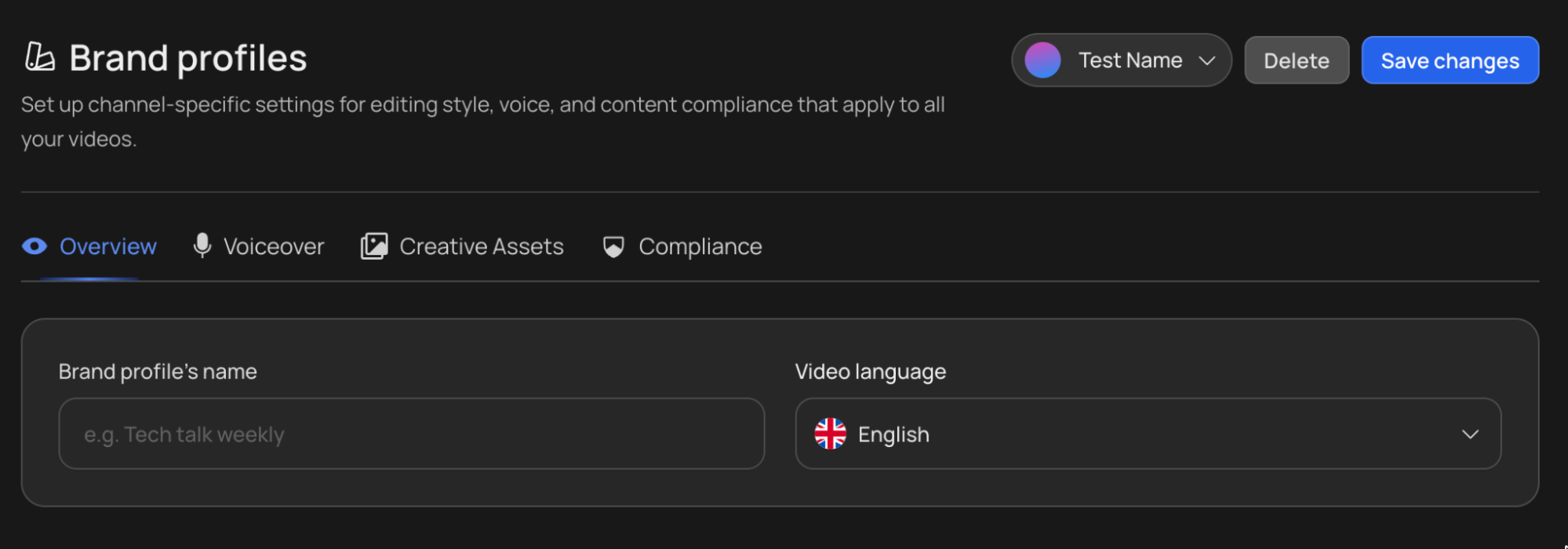
Your Brand Profile holds everything that stays the same across your channel: video language, voiceover provider and default voice, backgrounds, theme, and compliance rules such as blacklisted footage sources.
Click your Brand Profile selector, choose New Brand Profile, give it a name, set your video language, and pick your voiceover. Configure Creative Assets and Compliance if you want; the defaults are fine to start.
A profile can also learn your channel’s editing and writing style from one of your own videos. That is worth setting up after your first test video rather than before it, and it only takes effect on Experimental reasoning. See Editing & Script Style.

Every video you generate uses the active Brand Profile, so you never re-select a voice, theme, or language again. Full guide: Brand Profile.
Step 2: Pick a model and reasoning effort
- Deep Video v1 Mini (images plus motion graphics): cheapest, good for testing topics.
- Deep Video v1 Pro (video B-roll plus images): the full visual experience.
- Reasoning effort: Low, Medium, or Experimental. Medium is the recommendation for most videos. Experimental runs the newest pipeline and belongs on test videos first. See Generation Models.
Both selectors sit on the dashboard next to the prompt field. Start cheap, validate the topic, then scale up. See Generation Models.
Step 3: Write your prompt
Everything goes in the prompt now. The format, duration, and mode menus from earlier versions were removed.
Make me a 20-minute documentary about how the small town of
Kojima became the world's denim capital.

Main talking points:
1. ...
2. ...
What you can put in your prompt:
- The Format. “Make me a documentary” or “make me a top 10 video”. VidRush recognizes it and sets the format.
- The length. “Make me a 30-minute video.”
- Research instructions and links: what to research, which sources to use, and which part of the story to build the video around.
To skip AI writing entirely, click + and attach a Custom Script or upload a Custom Voiceover. VidRush infers the format and length from your script or audio automatically.
Two more options sit in the same place, either as a tab above the input box or under +. Upload Talking Head takes a recording of yourself speaking to camera and edits it into a finished video. Use AI Avatar puts a presenter on screen without filming anything. You can use one or the other, not both. On Persona I you need both an avatar and a Custom Script, and Talking Head is not available. See Talking Head, AI Avatar, and Persona I.
The AI Input Validator reviews whatever you supplied before generation: your prompt, a Custom Script, an uploaded Custom Voiceover, or a Talking Head recording. The check takes a moment to run. If no error appears, you can continue. Talking-head and avatar projects are held to stricter rules than an ordinary prompt. See Input Validation.
Full prompting strategy: Prompting and In-Depth Prompting.
Step 4: Review the Quote Statement
VidRush now shows the Quote Statement, its understanding of your request. Check the format, duration, language, model, Brand Profile, and voice. You can override any of them right there, including the video title. Fixing the title is worth a few seconds, because the thumbnail is generated around it.
When everything looks right, hit Approve & Continue. A final screen shows the estimated total credits for the generation; the real cost can end up slightly higher or lower. Approve once more and generation starts. Full guide: The Quote Statement.
Step 5: Pick a thumbnail
On the Thumbnail Reference page, pick a recommended thumbnail, enter a reference video, upload an image, or use a saved reference channel. The Settings tab controls how many variations you get, whether they carry text, and whether your face appears.
Skip and generate hands the choice to VidRush and cannot be undone. See Thumbnail Generator.
Step 6: Wait (you can close the tab)
Your video enters the queue. During high-traffic periods it can take a little while before the progress bar appears. Generation runs in the cloud, and most videos complete within 60 minutes. During peak usage periods it can take up to 5 hours, and in rare cases with very high demand as long as 7–8 hours. The finished video lands in Projects. See Queue & Generation for what to do if a video seems stuck.
Step 7: Edit, render, publish
Open the video in the editor: swap clips, fix text, adjust audio, then hit Render Video.
Render won’t always start. It’s refused if a render is already running on that project, if recent renders have failed, or if your balance can’t cover it, either because you’re out of credits or because an invoice is outstanding. The two are different problems: see Credits & Billing for the first and Failed Payments & Account Recovery for the second. Full detail: Rendering & Troubleshooting.
Rendering is the step that turns your edited timeline into a single finished video file, with the narration, footage, captions, and effects all baked in. Your generation cost already covers the first one, so the video waiting in Projects is a complete file you could publish as-is.
If you change anything in the editor afterwards, those changes only reach the file when you render again. Each re-render costs about 10% of the original generation, so it is worth making all your edits in one pass rather than rendering after each one.
One YouTube setting you must not skip: VidRush uses AI narration and some AI images, so toggle on YouTube’s “Altered or synthetic content” disclosure when uploading. Declaring it protects your channel against demonetization. See Compliance & Footage Sourcing.