Voice Selection
The voice is your video’s personality. It is the first thing viewers notice and the main factor in whether your content feels trustworthy or artificial. VidRush gives you a large voice library powered by ElevenLabs, Cartesia, plus 25 voices built exclusively for VidRush and optimized for specific niches.
Where you choose your voice
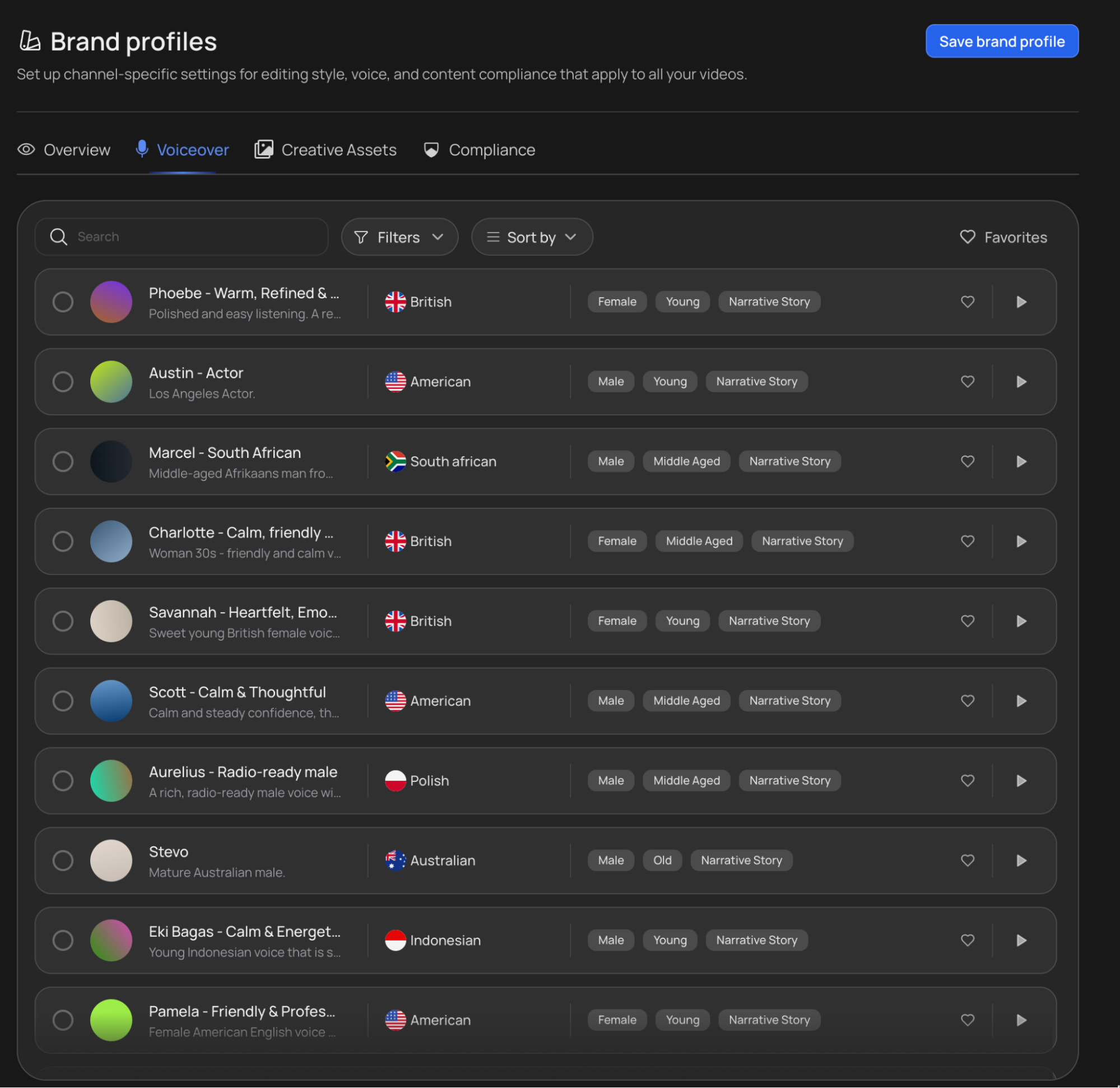
Your default voice lives in your Brand Profile (Voiceover tab). Set it once and every video uses it automatically. For an individual video, override the voice directly in the Quote Statement before generation; your Brand Profile stays untouched.
The voice library makes picking fast:
- Favorites: star the voices you like and they surface first.
- Search and filters: search by name or filter by use case (niche).
- Sorting: sort by usage count or by most cloned to find proven, popular voices.
Voiceover provider
ElevenLabs: The full ElevenLabs library (100+ voices), including the 25 VidRush-exclusive voices optimized for niches like Finance, Real Estate, True Crime, News, and History. Search “VidRush” in the library to find them.
Cartesia: The second primary provider. This option supports users following ElevenLabs’ implementation of SynthID watermarking.
YouTube’s AI-content disclosure (required reading)
If your video uses an AI voice, toggle ON YouTube’s “Altered or synthetic content” disclosure when uploading. The AI voice is the generative element that triggers the requirement, along with some AI images; the editing itself does not. Declaring it protects your channel: when YouTube detects undisclosed AI-generated content, demonetization comes much faster. The rule applies regardless of which provider you pick.
Tips for choosing a voice
Aim for natural, not perfect. A slightly less polished voice, what some creators call the “bedroom recorder” effect, often builds more viewer trust than a flawless corporate narrator. The goal is to sound like a real person, not a news anchor.
Prefer Studio Quality voices. Studio Quality means ElevenLabs’ own voices. Voices outside that set have training-data issues that can produce inconsistent accent, tone, or quality, which became more noticeable after the ElevenLabs v2.5 to v4 update. If a voice you used before now sounds different, switching to a Studio Quality one usually fixes it.
Avoid “Upbeat” or “Special” voices. Highly expressive, intense, or exaggerated voices are more likely to glitch, break character, or produce garbled audio during longer generations. Stick to grounded, conversational voices for consistent quality throughout the entire video.
Stay consistent across your channel. Voice output is now seeded per Brand Profile, so consistency is automatic.
Using your own voice
If you want to use your own narration instead of AI text-to-speech, you have two options:
Custom Voiceover upload: Record your narration externally and upload the audio file directly. VidRush builds the video around your recording. See Custom Voiceover for file requirements and instructions.
ElevenLabs voice clone: If you’ve trained a clone of your voice through ElevenLabs , you can find and select it in VidRush’s voice library. This lets you use AI-generated narration that sounds like you, without recording every script manually. The Voice needs to be on public.
Avatar voices
Avatar videos do not draw from this library. Each avatar comes with two or three voices chosen to suit it, and you pick one when you set the avatar up. See AI Avatar.
Troubleshooting voice issues
Audio glitches in the preview - Don’t panic. Most slurring, cutting out, or garbled audio in the editor preview is a browser buffering issue, not a permanent problem. Click Render Video first, about 90% of preview glitches resolve in the final rendered file. This is the case if after every cut there is a small hiccup.
If the issue persists in the final render, report the Video ID to the support team, this is always the first thing the team needs to investigate.
Voice sounds different mid-video - This is occasionally a pre-render artifact. Render the video and check the final file. If the problem survives the render and is confined to one stretch, ask the Rush Agent to regenerate that segment. If it persists across the whole video, report the Video ID to the support team through the Crisp chat widget.
Voice disappeared from the library - Voices may be removed if ElevenLabs retires them, or if VidRush has blocklisted the voice due to reported quality issues. If a voice you previously used is no longer available, check the Discord for current recommendations and alternatives.
A voice glitch in one specific spot. The Rush Agent lets you select a chunk of the voiceover and regenerate just that segment, directly in the editor. This is usually faster than contacting support.