Deep Video V2 (Beta)
Deep Video V2 is our newest and most capable model. It builds explainers and documentaries from footage, animated scenes, maps and diagrams, so the visuals follow your narration step by step instead of sitting behind it. Choose V2 for styles that rely on animation or 3D reconstruction, which earlier models can’t produce.
V2 is in beta. You’ll see a Try Beta Model label above its card in the model picker.
Supported formats
Documentary, Top 10 & Rankings, Explainer, Reviews & Demos, Stories & Essays, Interviews & Podcasts, Tutorials & How-To, and News & Briefings. VidRush matches the best format to your video based on the style you choose and what you provide.
What makes it different
- More relevant visuals. Footage is chosen to match the script more closely, and graphics and templates appear where they help explain the point.
- More visual variety. Each video mixes footage, animation, templates and AI-generated imagery, and the AI images are sharper.
- Smoother flow. Footage, animation and graphics move into each other naturally, with consistent colors throughout.
- Better voice delivery. Tone and intonation suit the topic: more dynamic for storytelling, more measured for explanations.
- Clearer style choices. Styles are grouped by the result you’ll get, such as 2D animation or 3D reconstruction, so you know what to expect.
- Things other models can’t do. V2 handles animation-led styles, including animated documentaries.
Because V2 builds so much of each frame itself, the look you choose matters more than on any other model. Your Brand Profile’s colors, fonts, editing style and script style all shape the result. See Brand Profiles.
At a glance
| Deep Video V2 | |
|---|---|
| Best for | Explainers, documentaries, tutorials, reviews, stories, interviews and news; script-first and audio-led videos |
| Video length | 10 to 30 minutes |
| Reasoning effort | Low, Light or Medium. High is listed but not available yet |
| Cost | Priced per film. You see an expected and a maximum price before you generate. See How V2 is priced below. |
| Video types | Faceless and Talking Head. A Talking Head video on V2 is made from one clip and uses that clip’s own audio, so you can’t add a separate voiceover. For several clips, use Deep Video v1 Pro. For AI Avatar videos, use Persona I or Deep Video v1 Pro. |
| Only on V2 | Tagging your own media in the prompt with @ |
How V2 is priced
V2 is priced per film instead of at a fixed rate per minute. Before you generate, The Quote Statement shows:
- Expected: what the video will most likely cost.
- Max price per minute: the most it can cost per minute of the length you ordered.
- Max Total: the most the whole video can cost.
When you start, the Max Total is set aside from your balance. When the video finishes, you’re charged for the actual video and the rest comes back. Longer videos cost less per minute: if your video is over 20 minutes, the whole video is priced at a lower rate per minute. The Quote Statement always shows the exact expected and maximum price before you generate.
- Discounts don’t apply to V2.
- In a team workspace, the owner’s plan sets the price.
Getting your Brand Profile ready
When you pick V2, VidRush checks your Brand Profile. If something V2 needs is missing, a pop-up shows what is set (Done) and what isn’t (Missing) across three parts: Visual Identity, Editing Style and Script Style. You can finish it in four ways.
1. Start from a preset (fastest)
Pick a ready-made look such as Science Discovery, Field Investigation or Business Breakdown and click Use Preset. Presets fill in whatever is missing, with no training and no credits. Presets marked Noah’s Choice are picked by our founder and give the strongest results. VidRush applies the preset and shows a preview; click Done and you’re ready to generate.
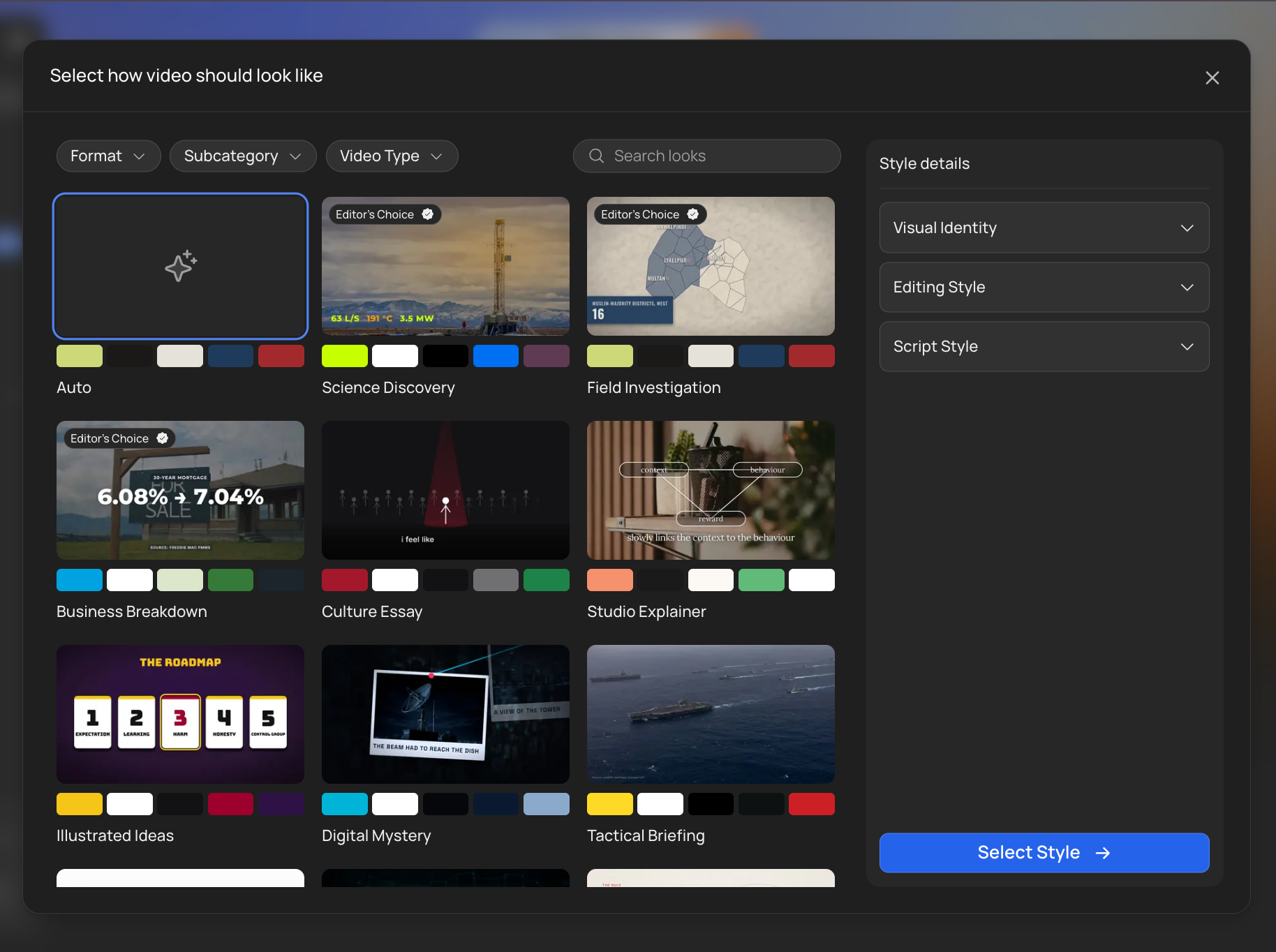
2. Fill in the missing parts in the pop-up
- Visual Identity: click Choose a Look to pick colors and fonts.
- Editing Style: paste a YouTube link to a video whose editing you like and click Train.
- Script Style: paste a YouTube link to a video whose writing you like and click Train.
You get 3 free trainings for each style every month, then 20 credits per training. Presets, looks, and styles you already trained on another profile are free.
3. Edit the Brand Profile yourself
Click Go to Brand Profile at the bottom of the pop-up to set everything by hand. If your profile has an Editing Style trained before V2, you can re-analyze it for V2; your old style stays in use until the new analysis succeeds.
4. Use a look for this video only
Click Choose a Look for This Video at the bottom of the pop-up. Your Brand Profile stays unchanged. See Choosing a look below.
Choosing a look
You can change the look of any V2 video without leaving the composer. Click Look at the bottom left of the prompt box.
- Filter looks by Format, Subcategory and Video Type (Faceless or Talking Head).
- Click a look to see its details on the right: Visual Identity (colors and fonts), Editing Style and Script Style.
- Auto picks the look that best suits your topic.
- Click Select Style to use it, or Set as Default Style to use it for every new video.
A look sets the colors, fonts, logo, editing style and script style for one video without changing your Brand Profile. You can also change it on the Quote Statement; the logo can only be changed there.
Tagging your own media with @
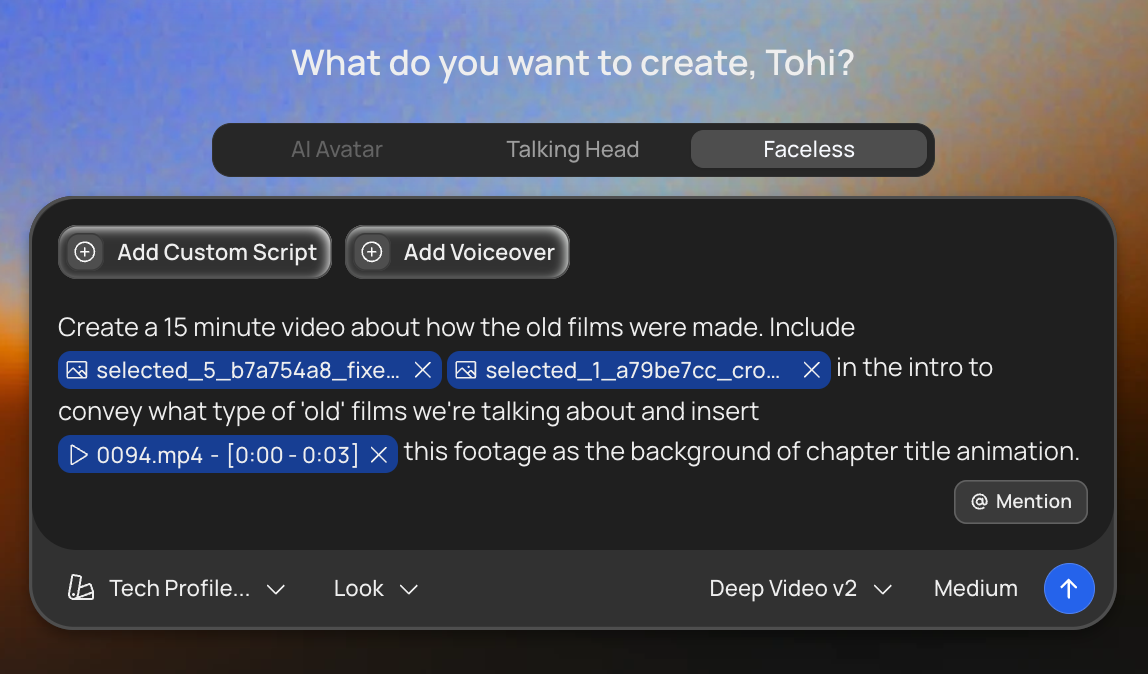
On V2 you can point the AI at specific files. Type @ in the prompt box, or click Mention, and pick a file from:
- Attached Media: files already attached to this video.
- Google Drive: public Google Drive files and folders. If a file with the same name is already in your library, choose Replace or Keep Both.
- Media Library: your videos, images, audio, documents and folders.
Then tell the AI how to use it, for example: “Use @image1.png as the image for the chapter title animations.” For video and audio you can mark a time range (such as 0:12 to 0:45) and add a note. See Media Library.
You can mention up to 50 files in one prompt, and the files inside a folder count toward that. Mentions only work on V2: if you switch to another model, they’re removed from your prompt.
Editing a V2 video
V2 videos open in the scene editor, which is built around scenes. You can:
- Edit each scene’s text, numbers, colors and options
- Jump between a scene’s parts from the Scene parts list, and add or remove items in its lists
- Replace a scene’s image or video
- Move, resize or rotate items on the canvas, where the scene allows it
To start over, click Restore AI Draft. It brings back the first version and keeps your edits in History.
Some classic editor tools aren’t in the scene editor yet, including the Rush Agent, split, the range tool, freeze frame and changing the narration voice. See Editor Overview for the full comparison.
Clip names in the scene editor are created automatically while the video is built, so they can look inconsistent: short codes like B01, titles, or a mix of both. They don’t affect the video. See Editor Overview.
Good to know
- V2 prompts need 200 to 10,000 characters. A counter under the prompt shows how many more you need.
- V2 refuses scripts with a section pasted twice, and voiceovers shorter than 10 minutes, each with a clear message.
- If your script or voiceover is shorter than 10 minutes, use v1 Pro, Persona I or Mini instead. The length check in Custom Voiceover and Generate with AI tells you which models fit.
- On Talking Head, V2 takes a single clip of 10 to 30 minutes and uses the clip’s own audio. A separate voiceover is Faceless only.
- V2 is in beta, so results and options will keep improving. Send feedback by clicking the ⋮ next to your name, then Feedback.