Media Library
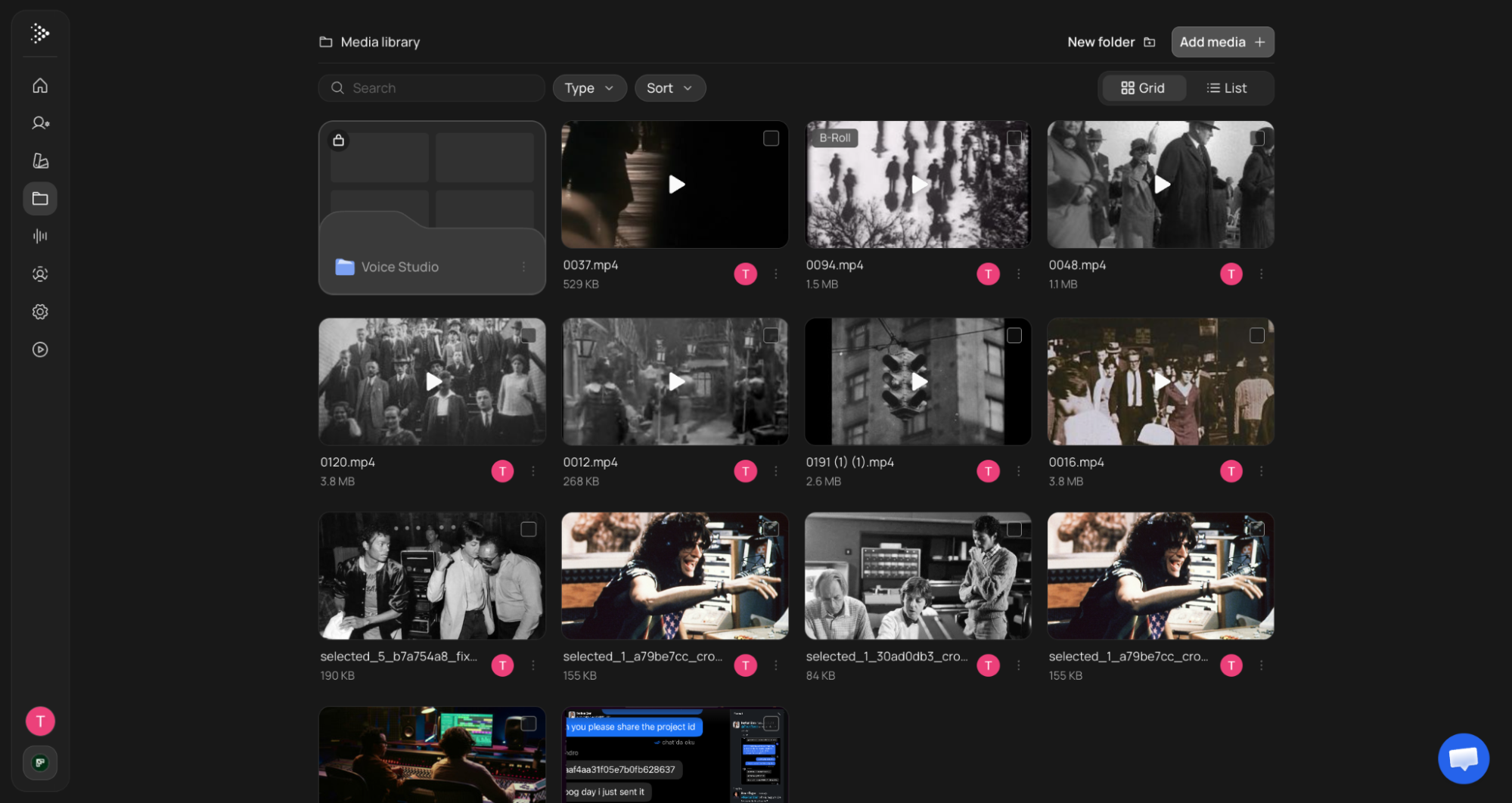
The Media Library keeps every video, image, audio file and document you’ve uploaded in one place, so you can reuse them in future videos. Open it from Media Library in the left sidebar.
What you can do
- Upload new files: click Add media to add videos, images, audio or documents (PDF, TXT or Markdown, up to 50 MB each) you want to use later. Add media also has From link, which imports a file from a URL (up to 150 MB).
- Organize into folders: click New folder, then move files into it.
- Find files fast: search by name, filter by Type, change the Sort order, and switch between Grid and List view. In grid view, video and audio files show a tag once they’ve been identified: A-Roll, B-Roll, Ad-Roll, Voiceover, Music or Sound Effect.
- Use files in a video: select files and send them straight to the composer.
Folders
VidRush sorts your files into folders automatically:
- Projects: a folder for every project. Each holds the inputs you attached, files you added in the editor and stock clips you added from the editor. Clips the Rush Agent swaps in aren’t saved there.
- Custom Voiceover: every voiceover you generate, whether in Voice Studio or with Generate with AI in the composer.
- Talking Head Footage: recordings you uploaded for Talking Head.
- Voice Clone Samples: recordings you uploaded to clone a voice.
- Ad Rolls: sponsor clips for Persona I.
You can’t rename, move or delete these folders, but you can manage a project’s own folder like any other. You can also create your own folders.
Working with several files at once
Tick the box on any file or folder to select it. A bar appears at the bottom with the number selected and these actions:
- Move to folder: move them to another folder, including a project’s folder.
- Create folder from selection: put them in a new folder.
- Delete selected: delete them.
- Attach to Composer: start a new video with them.
- Clear: unselect everything.
You can select up to 100 items at a time, and folders can go up to 4 levels deep. Deleting a file also removes it from any project that uses it. VidRush warns you before it does.
Using your files in a video
There are three ways to bring library files into a video:
- From this page: select files and click Attach to Composer to start a new video with them. VidRush picks the model that fits: several talking-head clips, or a clip with a voiceover, open on Deep Video v1 Pro, and other files are tagged with @ on Deep Video V2. A script or voiceover replaces the prompt.
- In the composer: choose From Media Library under Add Voiceover to use a saved audio file.
- With @ on V2: type @ in the prompt to tag an image, video, audio file, document or a whole folder from your library, and tell the AI how to use it. You can tag up to 50 files. Custom voiceovers and voice clone samples can’t be tagged. For example, “Use @research-notes.pdf as the main source for chapter 2.”
Upload checks
New uploads show Indexing and Validating for a moment while VidRush processes and checks them. Files with violent or otherwise inappropriate content are rejected, the same as any other input. Files that fail show Rejected or Check Failed. See Input Validation.
How your files are sorted
When you upload a file, VidRush works out what kind of file it is. The composer then only shows files that fit what you’re picking, so you’re not scrolling through everything.
| File type | What VidRush checks | Where it shows up |
|---|---|---|
| Video | Whether someone is talking straight to the camera, and what each part of the video shows | Talking Head picker. Videos also get an A-Roll, B-Roll or Ad-Roll tag |
| Audio | Whether it’s mostly narration, music or sound effects | Voiceover pickers (Add Voiceover, From Media Library, and the Talking Head voiceover). Audio also gets a Voiceover, Music or Sound Effect tag |
| Documents (TXT, MD, PDF) | Whether the text can be read aloud as it is, as a voiceover | Add from Media Library in Custom Script, if it reads as a script |
This sorting never rejects a file. It’s separate from the content check you see as Validating (see Upload checks above). Once a file passes that check, it stays in your library whatever it’s sorted as. A picker only lists files VidRush has sorted as a match. A file that’s still being sorted, or that VidRush couldn’t sort, won’t appear in that picker, but you can still find it on this page.
If a file doesn’t show up where you expect:
- Talking Head: the person should face the camera and speak for most of the video.
- Voiceover: the audio should be mostly speech. A track with long music sections may be sorted as music instead.
- Music or sound effects: these show as tags on the file. There’s no music or sound effect picker.
- Custom Script: the text should be the narration itself, written to be read aloud. Notes, articles, outlines and plans aren’t treated as scripts. You can still tag them with @ on Deep Video V2 as reference material.
How much you can store
Uploads count against your plan’s storage allowance. This is one total across your whole workspace. Stock clips you add yourself from the editor count too, and you need an active plan to upload.
| Plan | Storage |
|---|---|
| Starter | 5 GB |
| Creator | 30 GB |
| Pro | 100 GB |
| Scale | 250 GB |
| Studio | 1,000 GB |
Videos uploaded from your computer can be up to 1 GB each, and you can compress a large video before it uploads. Videos imported from a link can be up to 150 MB. Audio files can be up to 300 MB each, and images up to 20 MB. You can upload up to 10 files at a time. Videos can be up to 2 hours long, at most 4K and 60 fps. Large videos can take a while to upload, especially from outside Europe, because files are stored in Frankfurt. For example, a 500 MB clip can take around 15 to 20 minutes from Asia, compared with about a minute from Europe. A faster connection doesn’t help much over that distance. The upload will finish, so there’s no need to restart it. Images and audio files upload much faster.